
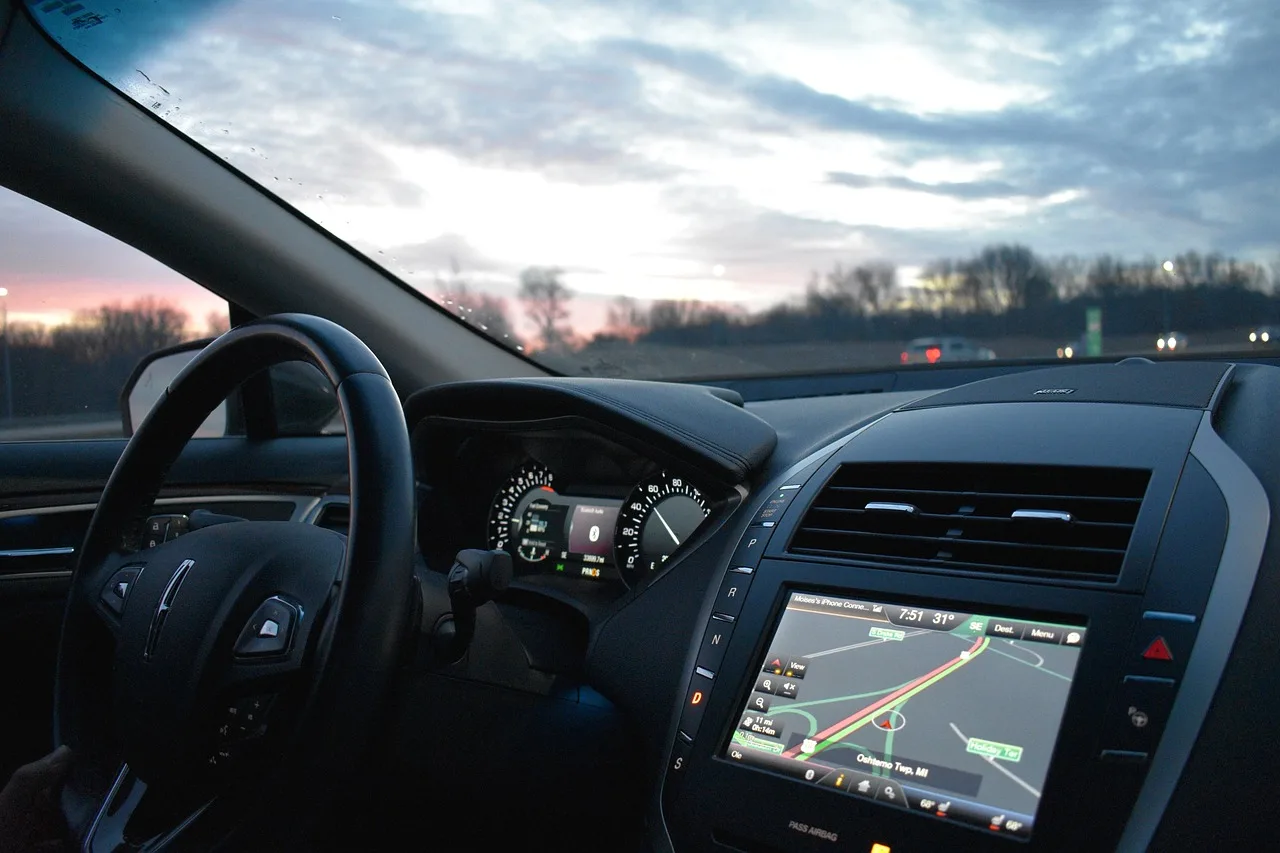
Can You Use GPS on Your Phone While Driving Safely?
Phone GPS is generally safest when the route is set before moving, the phone is kept mounted, and voice prompts are used. Tapping or typing while driving raises crash risk and can break distracted-driving laws. Poor setup costs attention fast. This guide explains the safety split, legal limits, and a lower-distraction setup.
When navigation becomes distracting
Turn-by-turn guidance is lower risk when it is already loaded, the phone is mounted in a stable spot, and there is no live interaction while the vehicle is moving. Navigation can become a problem when you start searching, zooming, scrolling, or changing routes by hand.
Navigation is often less risky than texting because it can run passively. The danger is not the map itself. The danger is the screen glance, the hand off the wheel, and the mental load of deciding what to do next.
That is why the answer changes from “usually acceptable” to “unsafe” the moment the phone becomes a task interface. A quick glance at the next turn is one thing. Repeated taps, typing a destination, or digging through app menus while moving is another.
Use gps safety checklist
| Actions to do before moving | Actions allowed only when stopped | Actions that require pulling over | Why it increases distraction |
|---|---|---|---|
| Enter the destination and start the route | Confirm a traffic alert at a full stop | Search for a new destination | Searching adds visual, manual, and cognitive load at the same time. |
| Turn on voice directions | Accept a simple route prompt at a red light only if local law allows phone use at that stop | Zoom the map or browse alternate routes | Map changes force longer screen glances and more mental processing. |
| Place the phone in a stable mount | Dismiss a single notification if the vehicle is fully stopped and it is legal to do so | Type a gas station search while rolling | Typing takes eyes off the road and hands off the wheel. |
| Silence nonessential alerts with Do Not Disturb While Driving | Review a missed turn after you stop in a legal parking spot | Adjust app settings while merging or in traffic | Settings menus create prolonged distraction and slow reaction time. |
| Choose a route with clear instructions | Use voice commands for a simple reroute at a stop | Enter a new address mid-drive | New route entry adds mental load and invites lane deviation. |
A common first-timer mistake is assuming “navigation” means “safe to touch.” Suppose the map is set, but the driver notices a missed exit and starts pinching to zoom at 55 mph. That one change can add visual distraction, manual distraction, and a slower response to traffic.
What makes map use distracting?
Map use can distract in three separate ways: visual distraction from glances, manual distraction from taps and swipes, and cognitive distraction from planning or recalculating. Each one can affect lane position and reaction time, even when the app is giving correct directions.
Visual distraction from screen glances
Looking away from the road, even for a short time, is risky because traffic changes fast. A glance that seems harmless at low speed can still cover enough distance for a lane drift, a missed brake light, or a delayed response to a merging vehicle.
Manual distraction from taps and swipes
Touching the screen takes at least one hand off driving tasks and often leads to a longer glance. Repeated tapping is especially risky because it adds both hand movement and attention switching. That is why route searches, map zooming, and menu changes belong before departure or after pulling over.
Cognitive distraction from route decisions
Thinking through “which route is fastest,” “should I avoid tolls,” or “why did the app recalculate” uses attention that should stay on traffic. Cognitive distraction is easy to miss because the hands may stay on the wheel while the mind is elsewhere.
Route recalculation is a common failure case. If the app changes directions because of traffic or a missed turn, the safest response is often to keep driving until a safe stop, then review the new route. Do not treat every new prompt as something that needs an immediate response.
How to set up navigation before you move
The safest way to start navigation is to finish setup while parked: enter the destination, choose the route, turn on voice directions, and silence nonessential alerts. Once the vehicle is moving, the phone should function as a passive display, not a device you need to manage.
-
Enter the destination first.
Put in the address before shifting into drive, then confirm that the route looks right. If you need toll avoidance, highway avoidance, or a specific stop, choose it now, not in traffic. -
Start voice guidance.
Turn on spoken directions so you can hear the next turn without reading the map. Voice prompts reduce screen glances, but they do not make the phone interaction risk-free. -
Silence extra notifications.
Use Do Not Disturb While Driving on iPhone or Android, and keep exception handling tight. Allow only the alerts you truly need, because each buzz invites a glance. -
Place the phone in view.
Mount it where you can glance without reaching. Eye-level or near-eye-level placement usually works best when it does not block the road view or create glare. -
Confirm the route is locked.
Check that the app is on the correct trip and that you will not need to search, type, or swipe once the car is moving. The goal is a passive display, not a moving target.
Say your route is loaded and the phone is mounted on the dashboard just below eye level. If the app gives one spoken turn and the screen stays on the same route page, that is a lower-distraction setup. If you keep picking up the phone to verify each turn, the setup has failed.
Is hands-free GPS safer than touching the screen?
Yes. Hands-free GPS is usually safer because voice control and Bluetooth audio can reduce screen touches and shorten the time your eyes leave the road. It is still limited, though, because complex commands, poor speech recognition, and repeated confirmations can still demand attention.
What voice commands can do
Voice commands can start navigation, repeat the next turn, or adjust a route in simple cases. That helps because the phone can stay mounted while the driver keeps both hands available for steering and braking.
Hands-free mode is most useful for routine tasks. It works best when the destination is already saved, the app understands the command on the first try, and the driver does not need to search through results.
What hands-free cannot do well
Voice control is not a cure-all. It can still fail on street names, alternate route choices, or specific searches such as “nearest gas station with a car wash.” Those requests often trigger follow-up questions that pull attention back to the phone.
Even Bluetooth audio has limits. It can reduce screen touches, but it cannot remove cognitive distraction if the driver is still choosing between routes or correcting an address mid-drive.
When CarPlay or Android Auto is the better option
Vehicle infotainment systems such as Apple CarPlay, Android Auto, or built-in screen projection can be less distracting than holding a phone because they are designed for larger buttons and simpler interaction. They are not perfect, and availability varies by vehicle and phone, but they often reduce the need to reach for the handset.
If your car supports one of these systems, it is usually better to project the map to the vehicle screen than to use the phone directly. The key is still the same: set the route before moving and avoid live app browsing while driving.
Where should you mount your phone for navigation?
Mount the phone where it is stable, easy to read, and close enough for a quick glance without reaching. Dashboard and windshield mounts are the common options. The safest placement is usually near eye level, as long as it does not block the road, mirrors, or instrument cluster.
Windshield mount vs dashboard mount
A windshield mount can place the screen high enough to keep the driver’s eyes closer to the road line, but it must not obstruct visibility. A dashboard mount can be less intrusive and often feels steadier, especially in vehicles with a flat, textured surface.
Neither mount is automatically best. The right choice depends on the car layout, the driver’s seating position, and whether the phone stays put over bumps and turns.
Eye-level placement and stability
Eye-level placement helps because it shortens the glance path. Stability matters because a wobbling phone invites repeated checks and manual fixes. The goal is a mount that keeps the screen readable without making you reach, tilt, or re-attach the device.
What to avoid when choosing a mount
- Do not place the phone low near the shifter if it forces long downward glances.
- Do not use a loose mount that slips during braking or cornering.
- Do not block airbags, vents you need for defrosting, or the windshield view.
- Do not choose a spot that reflects glare directly into your line of sight.
Picture a phone mounted high enough to read without dropping your chin, with the screen bright enough for daylight but not so bright that it draws your eyes for seconds at a time. That setup is better than a hand-held phone, yet it still demands discipline if the app starts recalculating mid-trip.
Is it legal to use GPS on your phone while driving?
Laws vary by state and country, and handheld restrictions are commonly reported. A setup may be legal in one place and still be a bad idea from a safety standpoint, so legality and safety should be checked separately.
Some places use primary enforcement, which means an officer can stop you just for the phone violation. Others treat it as a secondary offense or carve out exceptions for navigation when the phone is mounted and hands-free. Do not assume a GPS exception applies everywhere.
Phone use exceptions can be narrow. A route that is legal to display may still violate local rules if you are holding the phone, typing at a stop, or interacting with it in moving traffic. If the law is unclear where you are driving, the safer choice is the least interactive setup.
Frequently asked questions
Can you use GPS on your phone while driving safely?
Yes, if the route is set before you move, the phone is mounted, and you rely on voice prompts instead of screen interaction. It becomes unsafe when you start typing, zooming, searching, or making repeated changes. The phone should stay passive while the vehicle is in motion.
Does using maps on your phone count as distracted driving?
It can. Map use creates visual distraction when you look at the screen, manual distraction when you tap or swipe, and cognitive distraction when you decide on routes or respond to recalculation. Many crashes are caused by the combination, not just one action.
Can you use GPS at a red light or in stopped traffic?
A full stop lowers risk, but it does not make complex phone use fully safe. Short, legal actions may be allowed in some places, yet heavy interaction still competes with traffic changes, light timing, and surrounding drivers. Local law still matters at every stop.
Does voice guidance reduce distraction while driving?
Yes. Voice guidance reduces the need to read the screen and can help keep attention on the road. It does not remove all distraction, though, because the app can still demand decisions, confirmations, or corrections. Voice helps most when the route is already set.
What is the safest way to start navigation before driving?
Enter the destination while parked, confirm the route, turn on voice directions, silence nonessential notifications, and place the phone in a stable mount. If you need a new destination or a major route change, wait until you can stop safely and legally.
What should you do if you need to change the route while moving?
Do not type or browse while driving. If the change is minor, use voice guidance only if the system handles it cleanly; for anything larger, pull over to a legal stop, make the change, and then resume. A quick delay is safer than a rushed screen interaction.
